
Images stored in the "Club Picture Album" may be inserted into an article without uploading the image using the "Image Insert" ICON Upload feature.
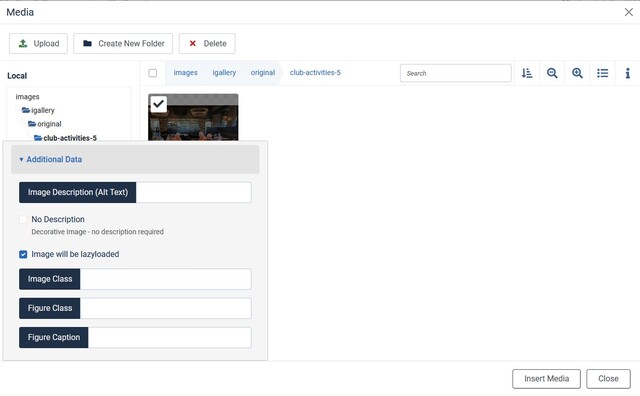
To insert a picture from the Club Picture Album click on the "Media" button a the bottom of the edit screen. This will bring up a file listing with the directories listed at the left.
- Select the "igallery/orignals" directory
- Double click on the folder to list the image categories/folder you wish to insert from (ignore the number at the end of the folder name)
- Select the image you wish to insert (check will appear in the box at the upper left of the image)
- Enter a Image Description
- Add an image caption as needed
- Click the "Insert Media" button to insert your image into the article.
You can resize the image or change it's attributes by selecting the image and clicking on the "Insert Image" Icon  on the last line of the editor menu buttons. The rounded edge format for the selected picture may be added using the "sft_article_image_img _border_round" style from the "Styles" drop down.
This method should eliminate the need to upload a second copy of the image to the web site.